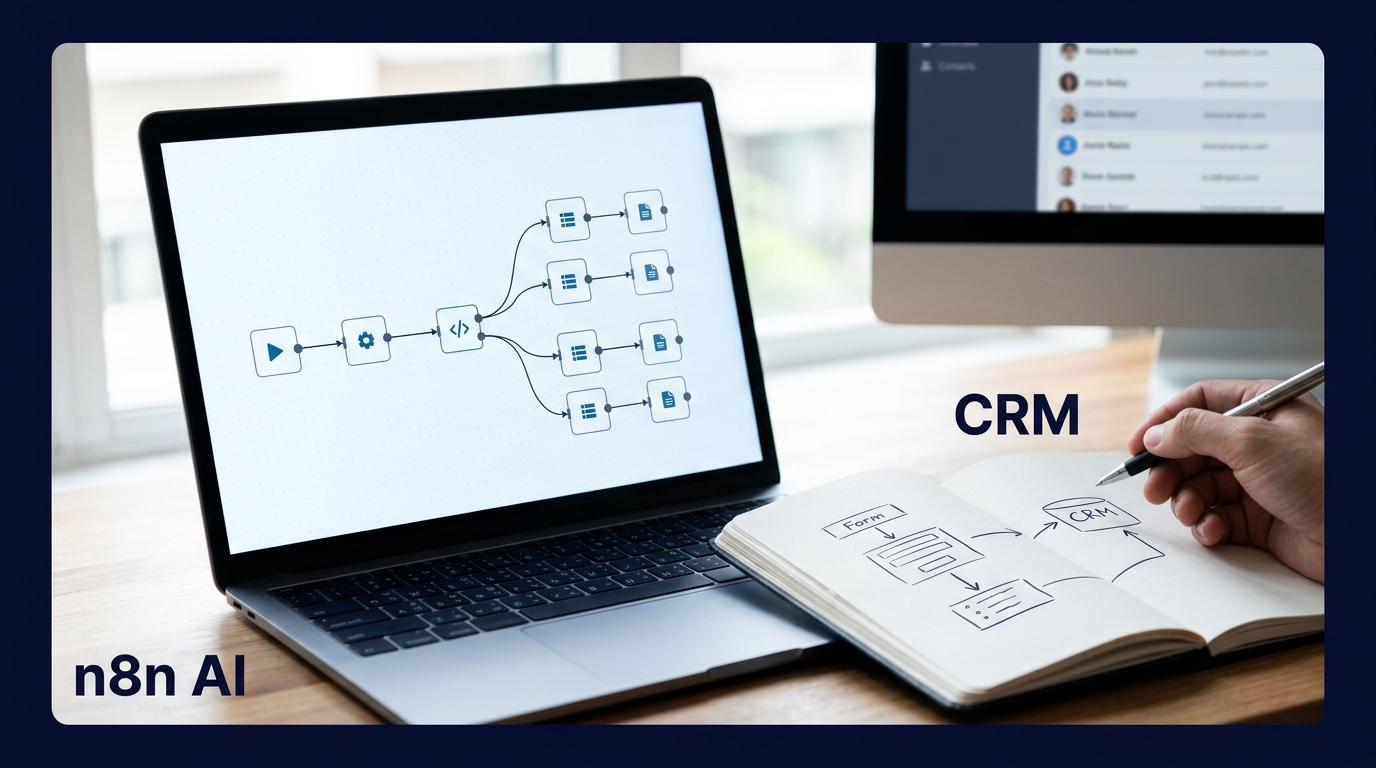
An n8n AI lead scoring workflow takes a form submission, asks a language model to rate the lead against criteria you define, and writes the result to your CRM. This tutorial builds that pipeline with a Webhook trigger, the Information Extractor node, a Code node for deterministic rules, and HubSpot as the CRM. It is written for developers who want a pattern they can adapt, not a fixed template.
How this article was made: it is based on official announcements, documentation and the sources listed at the end, not on our own hands-on testing. See our editorial policy.
Table of Contents
The architecture of an n8n AI lead scoring workflow
The flow has five stages. A Webhook node receives the form payload, and an Information Extractor node turns the free-text fields into structured attributes. A Code node then computes a final score, an IF or Switch node routes the lead, and a HubSpot node writes the contact.
This design splits the work on purpose. The model reads messy text, such as a “tell us about your project” field. Plain code applies the numeric weights, so the score stays explainable and you can change it without touching a prompt.
Requirements
- An n8n instance, either cloud or self-hosted.
- A chat model credential (OpenAI, Anthropic or another provider supported by n8n’s chat model sub-nodes).
- A HubSpot account and a credential for the n8n HubSpot node.
- A form tool that can send a POST request to a URL.
I did not verify Pipedrive’s node in this research, so the CRM steps below use HubSpot. The scoring logic is independent of the CRM, and only the last node would change.
Step 1: Receive the form submission with a Webhook node
- Create a workflow and add a Webhook node as the trigger. Set the HTTP method to the one your form sends, usually POST.
- Set a readable path, such as
lead-intake. - Under Respond, choose “Using ‘Respond to Webhook’ Node” if you want to control the reply. The other modes, per the Webhook node documentation, are Immediately and When Last Node Finishes.
- Add authentication, such as Header Auth, so random callers cannot push fake leads into your pipeline.
n8n generates two URLs for each Webhook node, a Test URL and a Production URL. According to the n8n workflow development guidance, use the Test URL while building. The test webhook stays active for 120 seconds after you select Listen for test event. Switch to the Production URL only after you have saved and published the workflow.
Once the data arrives, the form fields sit under the body object. A field such as email is read with {{ $json.body.email }}. If you need a deeper walkthrough of triggers, see our n8n webhook tutorial.
Step 2: Extract structured attributes with the Information Extractor
Add an Information Extractor node after the webhook. The Information Extractor documentation describes it as a node that extracts structured information from incoming data. Connect a chat model to it as a sub-node.
Set the Text parameter to an expression that combines the free-text fields, for example the company description and the project message. Then choose a schema type. The documented options are From Attribute Descriptions, Generate From JSON Example and Define using JSON Schema.
A practical schema for n8n AI lead scoring might include:
company_size_band: a string such as “1-10”, “11-50” or “unknown”.budget_mentioned: a boolean.timeline: “immediate”, “this quarter”, “exploring” or “unknown”.use_case_fit: an integer from 0 to 10, with the criteria spelled out in the attribute description.reason: one sentence explaining the fit rating.
Two details from the docs matter here. When you generate a schema from a JSON example, n8n uses the property names and types and ignores the values. It also treats every field as mandatory, so include “unknown” as a valid answer instead of leaving fields empty. n8n also appends format instructions to the system prompt automatically, so you do not need to write JSON formatting rules yourself.
Keep the extraction prompt narrow. Ask the model to describe the lead, and leave the final number to code. For help choosing a provider, see Claude vs OpenAI in n8n.
Step 3: Turn the attributes into a score with a Code node
Add a Code node that reads the extractor output and applies weights you control. The weights below are examples I made up for illustration. Replace them with your own sales criteria.
const o = $json.output;
let score = 0;
const sizeWeights = { "1-10": 5, "11-50": 15, "unknown": 0 };
score += sizeWeights[o.company_size_band] ?? 10;
if (o.budget_mentioned) score += 25;
if (o.timeline === "immediate") score += 25;
else if (o.timeline === "this quarter") score += 15;
score += o.use_case_fit * 3;
score = Math.min(score, 100);
const tier = score >= 70 ? "hot" : score >= 40 ? "warm" : "cold";
return [{ json: { ...$json, lead_score: score, lead_tier: tier } }];
Note that the output location depends on how your extractor node returns data, so check the node’s output in the editor and adjust the path. A code-based score is easier to audit than a number the model invents. You can also log it next to the model’s reason field and review borderline leads by hand.
Step 4: Route by tier
Add a Switch node with three branches for hot, warm and cold. Hot leads can notify a sales channel and create a deal. Warm leads go to a nurture list, and cold leads are only recorded. Keep the routing rules simple at first, and tune the thresholds after you see real submissions.
Step 5: Write the lead to HubSpot
The n8n HubSpot node documentation says the node supports creating, updating, deleting and getting contacts, deals, lists, engagements and companies. For form leads, use the Contact resource.
- Add a HubSpot node and set the Resource to Contact.
- Choose the Create or Update operation. Email is required and is the value HubSpot matches on, so a repeat submission updates the existing contact instead of creating a duplicate.
- Map email, first name and last name from the webhook body.
- Add custom properties for the score, for example
lead_scoreandlead_tier. Create these properties in HubSpot first, because the node cannot write to a property that does not exist. - For hot leads, add a second HubSpot node with the Deal resource and the Create operation, then associate the contact ID from the previous node.
Finally, add a Respond to Webhook node so the form tool gets a clean success response. Place it after the nodes whose data you want to return.
Common problems with this n8n AI lead scoring workflow
The webhook never fires in production
The Test URL only works while the editor is listening. For live traffic, the workflow must be saved and published, and the form must call the Production URL. n8n also allows only one webhook per path and HTTP method combination, so a path conflict with another workflow will block registration.
The extractor returns malformed output
Parsing failures in the AI nodes are a known pain point. Public issue reports on n8n’s GitHub repository describe “Invalid JSON in model output” errors, and some say longer inputs make them more likely. Trim the input text and keep the schema small. Add an error branch so a failed extraction still creates the contact, with an empty score, instead of dropping the lead.
Fields are empty or reset downstream
Later nodes can replace the current item. Reference the earlier node explicitly, for example the webhook, when you need the original form fields after the AI step.
Scores drift or feel arbitrary
If scores seem off, check the reason text and compare it with the final tier. Revise the attribute descriptions first, then the weights in the Code node. Keeping the weights in code means a scoring change only touches the Code node, not the prompt.
Privacy and next steps
Form submissions often contain personal data, and you are sending that text to a model provider. Check your provider’s data terms and your obligations before you go live. Our guide to GDPR and AI chatbots at work covers what to check.
Once the basic pipeline runs, you can add enrichment before the extractor, a human review step for borderline scores, or a feedback loop that compares scores against closed deals. For the model setup itself, see our Claude n8n integration guide.
Conclusion
A good n8n AI lead scoring workflow keeps each job in the right place. The model interprets text, code applies weights you can audit, and HubSpot stores the result in custom properties. Start with a small schema, test with the Test URL, publish, then tune thresholds against real leads.