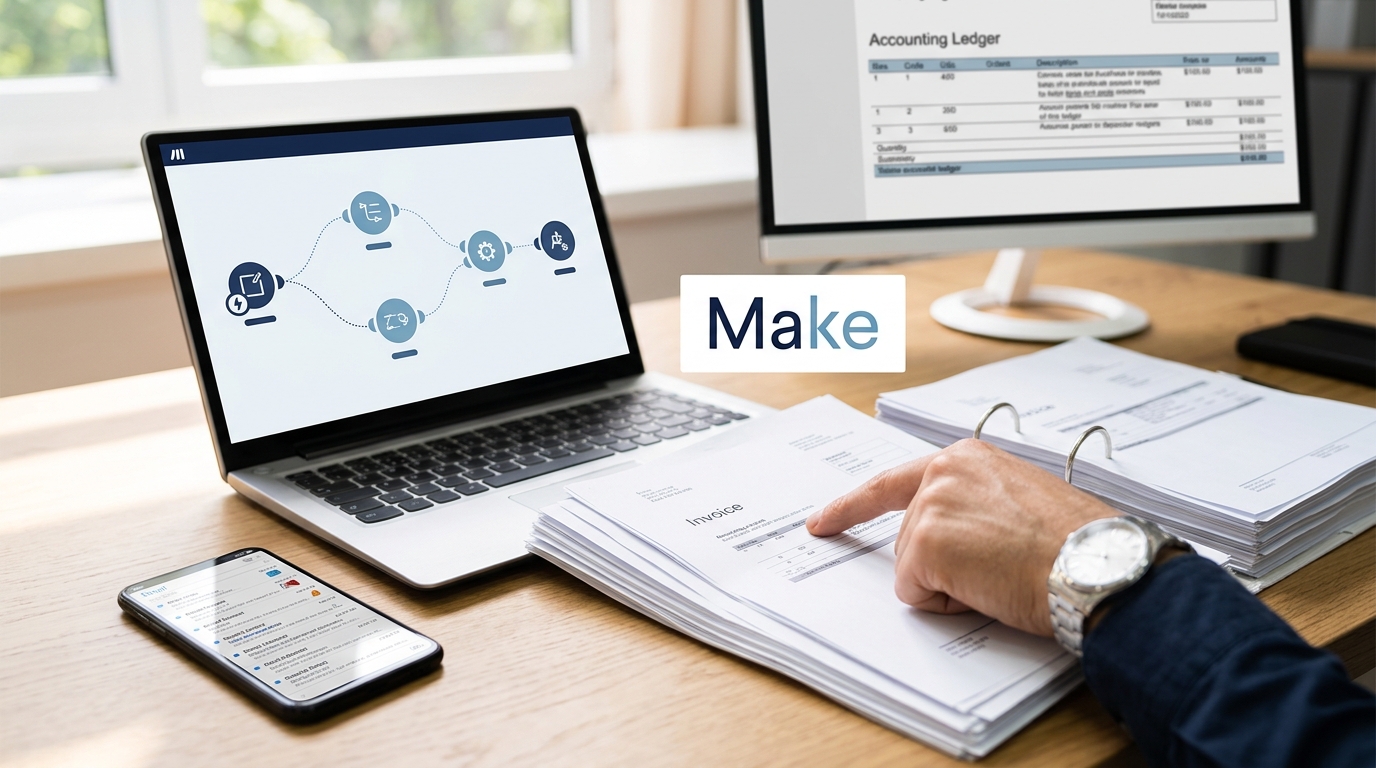
Small businesses often lose hours each week retyping supplier invoices from email into accounting software. This tutorial shows how to automate invoice processing Make can orchestrate: a Gmail inbox feeds an OCR step, then an AI extraction step, and finally a bill in your accounting tool such as QuickBooks.
How this article was made: it is based on official announcements, documentation and the sources listed at the end, not on our own hands-on testing. See our editorial policy.
The sources I found are third-party tutorials and community posts, not Make’s own documentation. Module names and menus change, so treat the steps below as a pattern to adapt and check each module in your own Make account.
Table of Contents
What the finished workflow does
One published Make walkthrough describes the pattern like this. Make triggers on new emails or uploaded PDFs, uses OCR modules to extract line items, routes the data to an accounting system for record creation, and posts approval requests to Slack or email. Make is the orchestration layer, the OCR service extracts the data, and the accounting tool receives the structured output.
The flow in this tutorial has five stages:
- Watch a dedicated inbox for new emails.
- Download the PDF attachment.
- Convert it to text or fields with an OCR or parsing service.
- Use an AI model to return clean, structured fields.
- Create the bill in your accounting software, or send it to a person when something looks wrong.
Requirements before you start
- A Make account. Make has a free plan with 1,000 credits per month, which is enough to build and test.
- A Gmail or Google Workspace mailbox that receives invoices. Using a separate address helps: create a dedicated email address (for example invoices@yourcompany.com) or a Google Drive folder where all invoices are sent or uploaded.
- An OCR or document parsing service. The sources mention Mindee, Docparser, Google Document AI and PDF.co.
- An OpenAI API key, or another AI provider supported in Make.
- An accounting account such as QuickBooks Online. Use a sandbox company for testing.
Step-by-step: automate invoice processing Make scenario
1. Trigger on new emails with attachments
Create a new scenario and add the Gmail “Watch Emails” module. Point it at the invoice label or the dedicated address. A published example scenario follows it with a filter for emails that have an attachment, then a Gmail module that downloads the attachment.
Run the module once so Make can load a sample email. You need that sample to map fields in later steps.
2. Download the attachment and filter out non-invoices
Add the Gmail module that downloads the attachment and an iterator if an email can carry several files. Put a filter before the OCR step so signatures, logos and newsletters never reach it. This saves credits, because most module runs cost 1 credit, so a ten-module scenario costs at least 10 credits per execution.
3. Extract text with an OCR or invoice parser
Pick one extraction service and connect its Make module. The Make Community threads show two common routes: CloudConvert to extract text from the PDFs, then OpenAI to turn it into structured data, or a dedicated parser module.
PDF.co publishes a tutorial for its AI Invoice Parser in Make. It covers splitting a multi-invoice PDF into single files and extracting data from each one, with JSON output selectable in the parsing module. That tutorial saves results to Google Sheets, not to accounting software. It is useful if your suppliers send combined PDFs.
4. Turn the output into clean fields with AI
Add an OpenAI module (or another AI model) after the OCR step. Give it the extracted text and ask for a fixed set of fields: supplier name, invoice number, invoice date, due date, currency, net amount, tax and total. Ask for JSON only, and tell the model to leave a field empty instead of guessing.
This step handles layouts that differ by supplier. A Make Community user described the problem: each vendor’s invoice pattern is different, and the location of totals can change over time. One cost estimate for a Vision-style setup puts extraction at $0.03-0.10 per invoice. That figure comes from a third-party recipe, so check current provider pricing.
If the invoices contain customer or personal data, read our guide on GDPR and AI tools at work before sending documents to an AI provider.
5. Validate with a router
Add a Router with at least two paths. The first sends clean invoices to accounting. The second sends problem cases to a person.
- Valid path: required fields are present, the total is a number, and net plus tax equals the total.
- Review path: anything else goes to a Slack message, an email or a review sheet.
The example scenario does the same, with an invalid path that raises a Slack error alert and a Gmail request for correction. It also suggests an error handler that routes OCR failures to a manual review queue in Airtable. One source says router and error-handler modules use no credits, so the checks are cheap.
6. Create the bill in your accounting software
On the valid path, add the QuickBooks Online module to create a bill, and map the AI fields to it. The vendor must exist first, so search for the vendor by name and handle the “not found” case. A comparable n8n workflow emails the AP team with the vendor name and action steps when the vendor is not found in QuickBooks. You can copy that logic when you automate invoice processing Make style.
Expect line items to need extra work. In that n8n workflow, the native QuickBooks node supports only one line item per bill, so all extracted line items are combined into the description field. That is n8n’s node, not Make’s. Check what your Make module supports before you rely on itemised bills.
7. Test with real samples
Run the scenario on 10 to 20 past invoices from different suppliers before you switch it on. Compare each created bill with the original PDF. Write down which suppliers fail, and add a rule or an extra prompt line for each failure. Keep new bills in draft or approval status in your accounting tool until the results are consistently right.
Common problems with this setup
- Duplicate bills. If an email is processed twice, you create two bills. Store the invoice number and supplier in a data store or sheet, and check it before creating a bill. A QuickBooks workflow on GitHub lists preventing duplicate invoice creation as one of its features.
- Empty OCR output. An n8n template’s troubleshooting table lists an unsupported file or an OCR endpoint issue as the cause of empty OCR output. The same applies to any OCR connection in Make.
- Scanner photos and images. Not every service reads image files and PDFs equally well. Test each file type you receive.
- Vendor mismatches. “Acme Ltd” and “ACME Limited” may not match your vendor list. Send unmatched names to review.
What it costs
Costs have two parts: Make credits and the OCR and AI calls. Make replaced “operations” with “credits” as its billing unit on August 27, 2025, and most actions still use one credit. One source notes that some advanced features, such as native AI modules, consume credits dynamically.
Published plan prices conflict. Some sources list Core at $9 per month for 10,000 credits billed annually, while another reading of the pricing page in October 2026 gives $16 for Core billed monthly, or $12 billed annually. Regional pricing may explain the gap. Check Make’s pricing page for your country.
A rough count helps with planning. A scenario with a trigger, download, OCR, AI, router and QuickBooks steps uses around six or more credits per invoice. At 100 invoices a month, that is about 600 credits before retries. This is my own arithmetic from the one-credit-per-module rule, not a measured figure. One third-party guide estimates $0.15-$0.40 per invoice, including Make operations and OCR, which is another vendor-neutral reference point.
Limits and risks
- AI extraction can misread numbers. Keep the arithmetic check and a human approval step for high-value invoices.
- Your OCR and AI providers will process supplier documents, so check their data terms.
- Make’s credit use rises with every extra module and every retry, so keep the scenario short.
- This pattern does not replace your accountant’s rules on VAT, retention or approvals.
Alternatives and next steps
If you prefer describing a workflow in words, see our overview of Make Maia. If you are still choosing a platform, our Make vs Zapier comparison for small businesses (in Spanish) covers the trade-offs. Dedicated invoice-extraction software also exists, and may suit you better if you process high volumes.
Conclusion
To automate invoice processing Make can handle the orchestration, but the quality of your results depends on the OCR service, the AI prompt and your validation rules. Start with one supplier inbox and a sandbox accounting company, and keep a manual review path for every uncertain invoice. Widen the scenario only after the test invoices come out right.