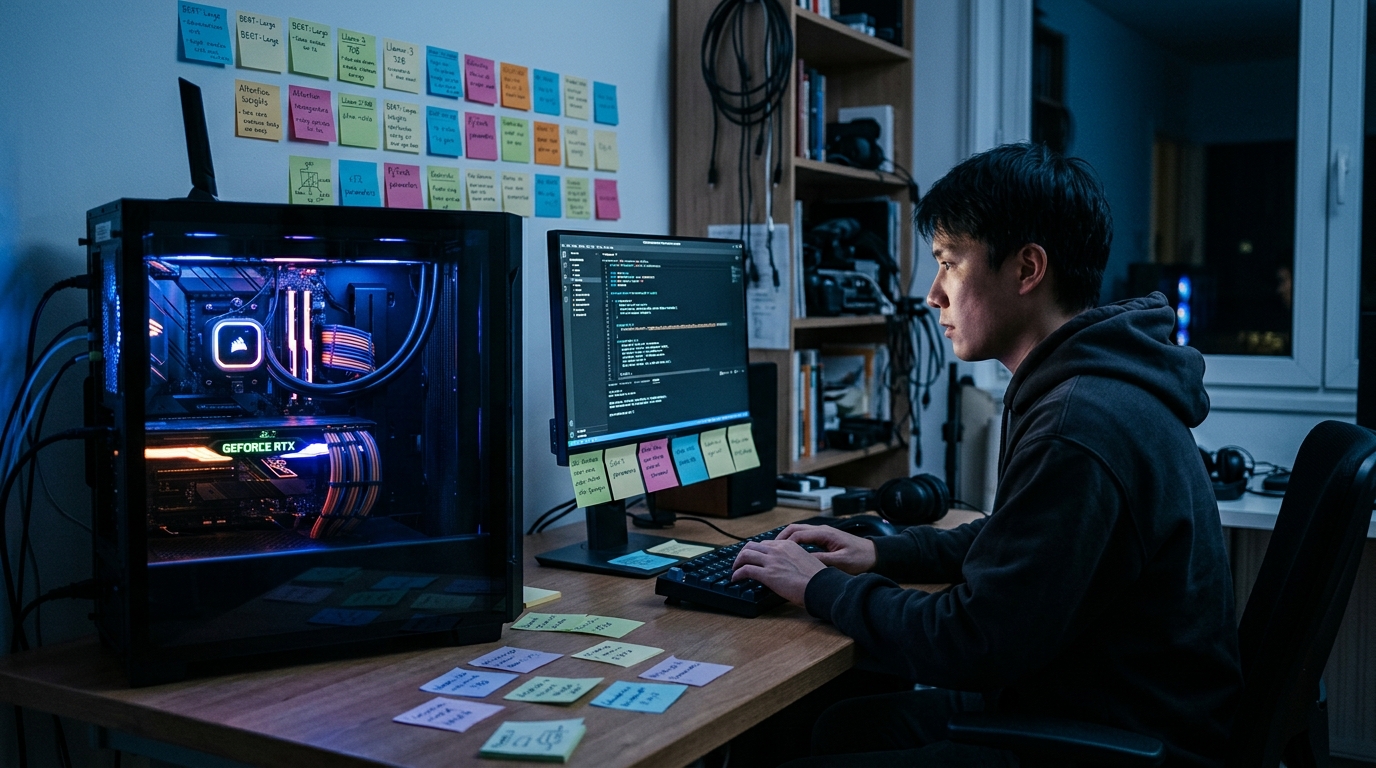
Qwen3.8-27B is the most practical open-weight model to come out of Alibaba’s August 2026 launch cycle. While the headline-grabbing Qwen3.8-Max requires cluster-scale hardware, the 27B variant is engineered for a completely different audience: AI enthusiasts with a single 24GB consumer GPU who want frontier-class capability without paying for API credits. This guide covers everything you need to run qwen3.8 27b locally, from choosing the right quantization to the exact commands for Ollama, LM Studio, and llama.cpp.
What Is Qwen3.8-27B and Why It Matters for Local AI
Officially released on August 14, 2026, Qwen3.8-27B is a 27-billion-parameter multimodal AI model from Alibaba Cloud’s Qwen Team, published under the Apache 2.0 license. The confirmed spec set includes a dense 27-billion-parameter architecture, native multimodal support (text, images, video, diagrams, documents), and a native 262,000-token context window that extends to 1 million tokens via YaRN.
Qwen3.8-27B delivered Apache 2.0 weights, a vision encoder, 262k context, and published benchmark numbers — all downloadable and all runnable on a single GPU. Key finding: Qwen3.8-27B achieves competitive performance with models 10–15× its size while maintaining practical deployment requirements, and outperforms Meta’s Muse Glimmer (30B) across all 8 direct comparison benchmarks.
The distilled Qwen3.8-27B was released under the permissive Apache License, meaning commercial use, modification, and redistribution are all permitted. Placeholder and fork repos squatted on this model’s name for weeks before release and some are still around, so verify the publisher is Qwen before downloading. The quant ecosystem appeared within hours of release across llama.cpp, LM Studio, Jan, and Ollama.
Hardware Requirements: Which GPU Do You Need?
Before you run qwen3.8 27b locally, you need to match the right quantization to your available VRAM. The numbers below are confirmed by multiple independent sources.
VRAM by Quantization Level
How much VRAM you need depends almost entirely on which quantization you run: Q4_K_M requires roughly 16 GB (the 24 GB card sweet spot), Q3_K_M / IQ3 around 13 GB (fits 16 GB and even 12 GB cards, with a visible quality step down), Q6_K around 21 GB (near-lossless, a tight-but-real fit on a 24 GB card), Q8_0 around 27–30 GB (for 48 GB cards), FP8 serving roughly 27 GB for weights alone, and full BF16 roughly 54 GB VRAM.
| Quantization | Approx. VRAM | Recommended Hardware |
|---|---|---|
| Q3_K_M | ~13 GB | RTX 3080 (16 GB), RTX 4070 Ti |
| Q4_K_M | ~16–17 GB | RTX 3090, RTX 4090, RTX 5090 (24 GB) |
| Q6_K | ~21 GB | RTX 4090 / 5090 (tight fit) |
| Q8_0 | ~27–30 GB | RTX 5090 (32 GB), A6000, L40S (48 GB) |
| BF16 | ~54 GB | H100 class |
A 24 GB GPU is where Qwen3.8-27B becomes much more comfortable: Q4 weights fit with room left for a useful KV cache, and Q5 can also become practical depending on context length and runtime overhead.
Pro tip: if you’re running the 4-bit quant and want more context headroom, quantize the KV cache with –cache-type-k q4_1 –cache-type-v q4_1 in llama.cpp. It roughly triples usable context at the same VRAM budget, useful given Qwen3.8-27B’s 262K native window.
On Apple Silicon, use the MLX tag with ollama run qwen3.8:27b-mlx (18 GB), or LM Studio’s Q4. Expect 15–30 tokens per second on an M5 Max — the model is memory-bandwidth-bound.
Method 1: Run Qwen3.8-27B Locally with Ollama (Fastest Start)
Ollama is the recommended starting point for most users. Ollama installs and pulls fastest of the three tools in practical use, though its default KV cache settings can push VRAM consumption noticeably higher than the other two options.
Step 1 — Install Ollama
Download Ollama from ollama.com. On Linux and macOS, the installer is a single shell script. On Windows, use the .exe installer from the same page. No additional configuration is needed at this stage.
Step 2 — Pull and Run the Model
Install Ollama and run ollama run qwen3.8 — the default tag is the 27B at Q4_K_M, an 18 GB download with 256K context and vision.
ollama run qwen3.8:27bSpecifying qwen3.8:27b explicitly avoids ambiguity if Ollama adds other size variants to the same tag family later. For Apple Silicon, append -mlx to the tag instead.
Step 3 — Fix the Reasoning Effort Before Your First Prompt
This is the single most important setting. Before you do anything else, drop reasoning_effort from the default xhigh to medium or low — otherwise your first prompt can think for 20 minutes.
You can set it in a Modelfile or pass it directly in the API call. For agentic coding tasks or multi-step debugging where extra reasoning pays off, set it to high or xhigh instead. Getting this dial right is the difference between a snappy local assistant and one that takes 30 seconds to answer a simple question.
Step 4 — Set num_ctx Explicitly
Qwen3.8 models advertise a 256K context, but Ollama’s runtime default depends on your available VRAM: under 24 GB = 4K default; 24–48 GB = 32K default; 48 GB+ = 256K. The model maximum and the Ollama runtime default are different values. Always set num_ctx explicitly in your Modelfile or API call.
Also note: set repeat_penalty 1.0 for Qwen. Ollama’s default repeat penalty of 1.1 causes quality degradation on code generation tasks for the Qwen model family. Setting it to 1.0 (disabled) restores expected output quality.
Method 2: Run Qwen3.8-27B Locally with LM Studio (GUI Route)
LM Studio offers a GUI-first workflow that some developers prefer for exploratory chat. It is the best option if you want a visual interface without touching the command line.
Step 1 — Install LM Studio
Download the latest version from lmstudio.ai. It supports Windows, macOS (including Apple Silicon), and Linux.
Step 2 — Search and Download the Model
LM Studio gives you a GUI model browser where you pick the quantization directly from a dropdown, though downloads through it can lag behind Ollama’s pull speed.
- Open LM Studio and navigate to the model search bar.
- Search for Qwen3.8-27B.
- Select a quantization level from the options shown on the right, such as Q4_K_M (around 20 GB) or Q8_0.
- Click Download and wait for the file to complete.
Q4_K_M is the common home setup, landing around 20 GB, while Q8_0 is the recommended choice if you’re deploying toward anything production-like rather than just testing.
Step 3 — Load and Configure
Once downloaded, the model can be loaded into LM Studio’s chat interface directly, and it can also be ejected from memory when you’re done, freeing VRAM for another tool. Before chatting, open the model settings panel and lower the reasoning effort and set your context window explicitly — the same advice applies here as with Ollama.
This model supports image input. The GGUF repos include multimodal projector files (mmproj-Qwen3.8-27B-f16.gguf and mmproj-Qwen3.8-27B-bf16.gguf), which pair with any quant. LM Studio bundles the vision projector automatically when you download from its library.
Method 3: Run Qwen3.8-27B Locally with llama.cpp (Maximum Control)
llama.cpp provides more exact control and reproducibility. Ollama is easier to operate. Use llama.cpp when you need to tune KV cache types, enable Multi-Token Prediction (MTP) speculative decoding, or expose an OpenAI-compatible endpoint for agent pipelines.
Step 1 — Build llama.cpp with CUDA Support
git clone https://github.com/ggml-org/llama.cpp
cd llama.cpp
cmake -B build -DGGML_CUDA=ON
cmake --build build --config Release -j$(nproc)
Step 2 — Download the GGUF
Community GGUF packs (notably unsloth/Qwen3.8-27B-GGUF) publish the full quant ladder, including the vision projector needed for image input in every quant. As of August 19, Qwen3.8-27B GGUFs using Unsloth Dynamic V3.0 offer 10% more accuracy at the same size.
You can also pull directly from Hugging Face via the -hf flag, which downloads the model and mmproj automatically:
./build/bin/llama-server \
  -hf unsloth/Qwen3.8-27B-GGUF:Q4_K_M \
  -ngl 99 \
  --mmproj unsloth/Qwen3.8-27B-GGUF:mmproj-F16 \
  --jinja \
  --port 8080
llama.cpp downloads the mmproj automatically when using -hf; if you’re loading files manually, pass it with --mmproj.
Step 3 — Run the Server with Optimized Settings
The following command is a solid baseline for a single 24 GB GPU with MTP speculative decoding enabled:
./build/bin/llama-server \
  -m Qwen3.8-27B-Q4_K_M.gguf \
  --mmproj mmproj-F16.gguf \
  --jinja \
  -ngl 99 \
  -fa on \
  -c 32768 \
  --cache-type-k q4_0 \
  --cache-type-v q4_0 \
  --spec-type draft-mtp \
  --spec-draft-n-max 2 \
  --chat-template-kwargs '{"reasoning_effort": "medium"}' \
  --port 8080
This model has MTP (Multi-Token Prediction) layers included in the GGUF quants. MTP layers act as a built-in draft model, letting llama.cpp run speculative decoding for faster generation.
On a single RTX 4090 with this configuration, that gives 136.7 tokens per second, 17.0 GB VRAM used. Adding --reasoning-effort medium takes about a third off the wait before answers. Turning thinking off for simple work roughly doubles throughput.
Step 4 — Enable Vision (Optional)
Run llama-server -m Qwen3.8-27B-Q4_K_M.gguf --mmproj mmproj-F16.gguf --jinja -ngl 99. Skip it and you have a strong text model that will politely tell you it cannot see the image you just pasted.
If you are running a coding-only agent and want to save VRAM, the main GGUF is text-capable without a projector. Excluding mmproj-F16.gguf with --no-mmproj saves roughly 0.86 GiB and reduces complexity.
Common Problems and How to Fix Them
The model thinks for 20+ minutes on a simple question
Leaving reasoning effort at the default is almost always the cause of simple factual queries taking 15+ seconds. Set reasoning_effort to "low" for anything that doesn’t need multi-step logic.
VRAM overflow on a 24 GB card
Setting num_ctx too high on a 24 GB card is a common mistake. An independent test using a Q4_K_S configuration found that a 24 GB card remained comfortable through roughly 64K tokens, while 128K exceeded the card’s capacity without changing cache precision or offloading settings. Start at 32K and increase from there.
No vision output despite passing an image
You must load the mmproj file alongside the main GGUF. In Ollama this is handled automatically. In llama.cpp, pass --mmproj mmproj-F16.gguf explicitly. In LM Studio, confirm the multimodal projector is bundled in the downloaded package.
MTP speculative decoding gives worse results
Q4_0 is the best-accepting drafter quant. At 40K context with draft length 3, Q4_0 hit 44.95 tokens per second at 80.4% acceptance. A higher-quality drafter quant made things worse — a Q5/Q6 mix cost 26.6% throughput. Drafter and target behave as one system; don’t “upgrade” the draft head.
Fake or forked repo on Hugging Face
Check the publisher name is Qwen before downloading. Placeholder and fork repos squatted on this model’s name for weeks before release, and some are still around.
Which Tool Should You Use?
All three tools can run qwen3.8 27b locally on a single 24 GB GPU. The right choice depends on your use case:
- Ollama — Best for getting started in under five minutes. Vision bundled automatically. Set
reasoning_effortandnum_ctxexplicitly before your first session. - LM Studio — Best for GUI-driven exploration, model switching, and non-technical users. Once downloaded, models can be loaded and ejected from memory with a click, freeing VRAM for other tools. Downloads are noticeably slower than Ollama’s pull speed for the same file.
- llama.cpp — Best for agent pipelines, reproducible configs, MTP speculative decoding, and OpenAI-compatible endpoints. llama.cpp gives you direct control over CUDA layer offloading, context window allocation, and GGUF quantization selection.
If you’re interested in running local AI models as part of a broader privacy-first workflow, see our guide on running a fully local AI agent on an RTX PC with no cloud and no credits. And if you’re evaluating open-weight models for business use, our Kimi K3 review covers the other major open-weight contender released in the same period.
Next Steps
Once you have the model running, the practical next steps are: connect it to an OpenAI-compatible agent harness via the http://localhost:8080/v1 endpoint, test reasoning quality at different reasoning_effort levels on your actual tasks, and benchmark your specific GPU at different context lengths before committing to a context size. Given its SWE-bench Pro score of 61.7%, Qwen3.8-27B is strong enough to drive an agentic coding harness locally — making it a practical foundation for a private, zero-cost AI development environment.